Reforge has joined Miro ↗
All articles
Reforge Build: How to Improve the Tiny Decisions That Make Your Product Great
Feb 4, 2026
You can start for free at build.reforge.com or schedule a demo to learn more.
One of our core beliefs about AI prototyping is that speed enables deeper exploration, not just efficiency.
We shipped the first version of Reforge Build with Variations to put this idea front and center. When kicking off a new prototype, toggle "Variations" on and Build will create visual mockups of four different design approaches. Each one comes with an explanation of the core idea, how it works, and what tradeoffs it makes.
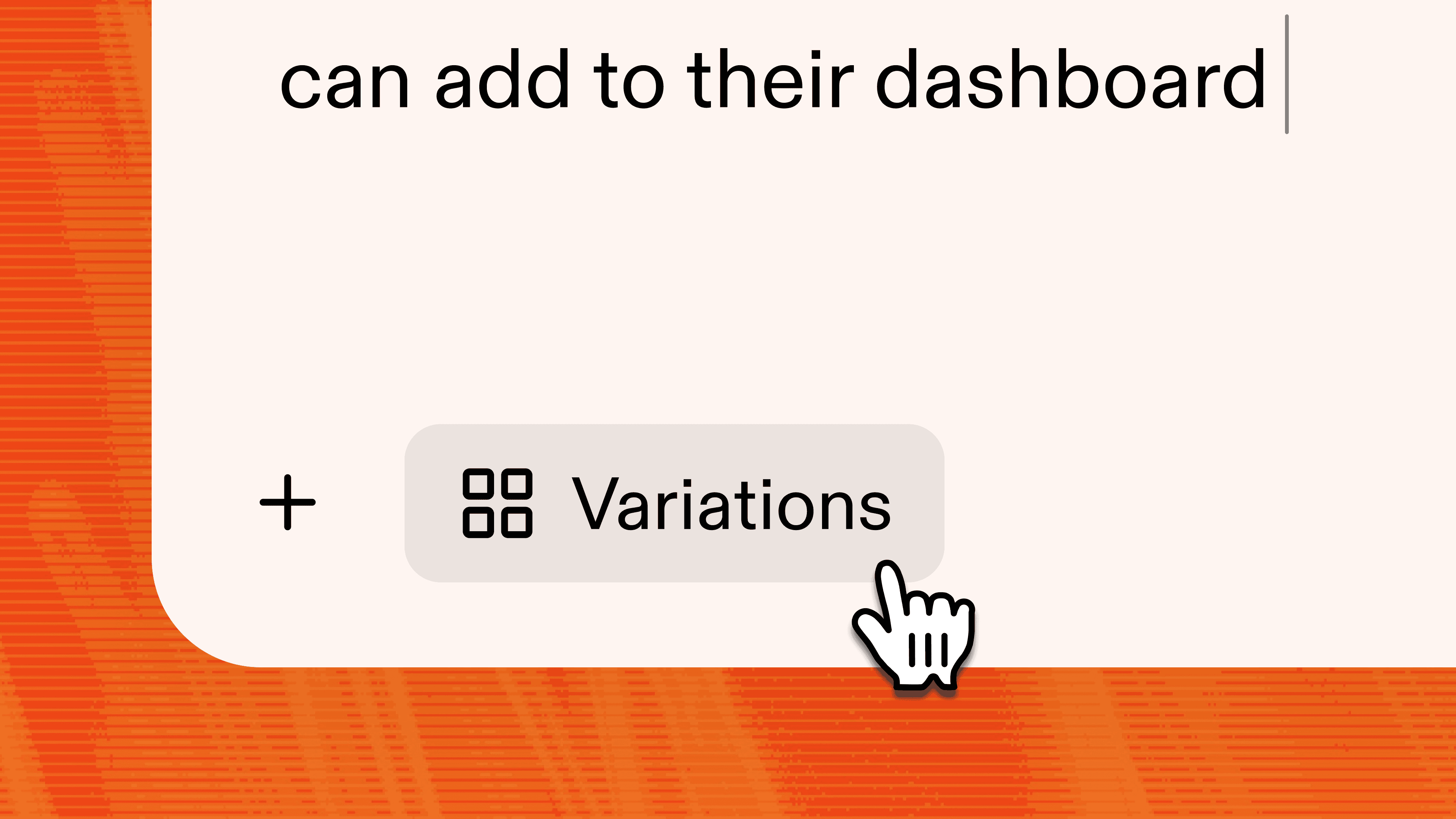
Component Variations takes this a step further. Once you’ve chosen a broad direction for your prototype, you can use Component Variations to explore ways to fine tune your idea.
This prevents you from committing to a direction before you've seen your options. The best solution is often the one you wouldn't have thought to build first.
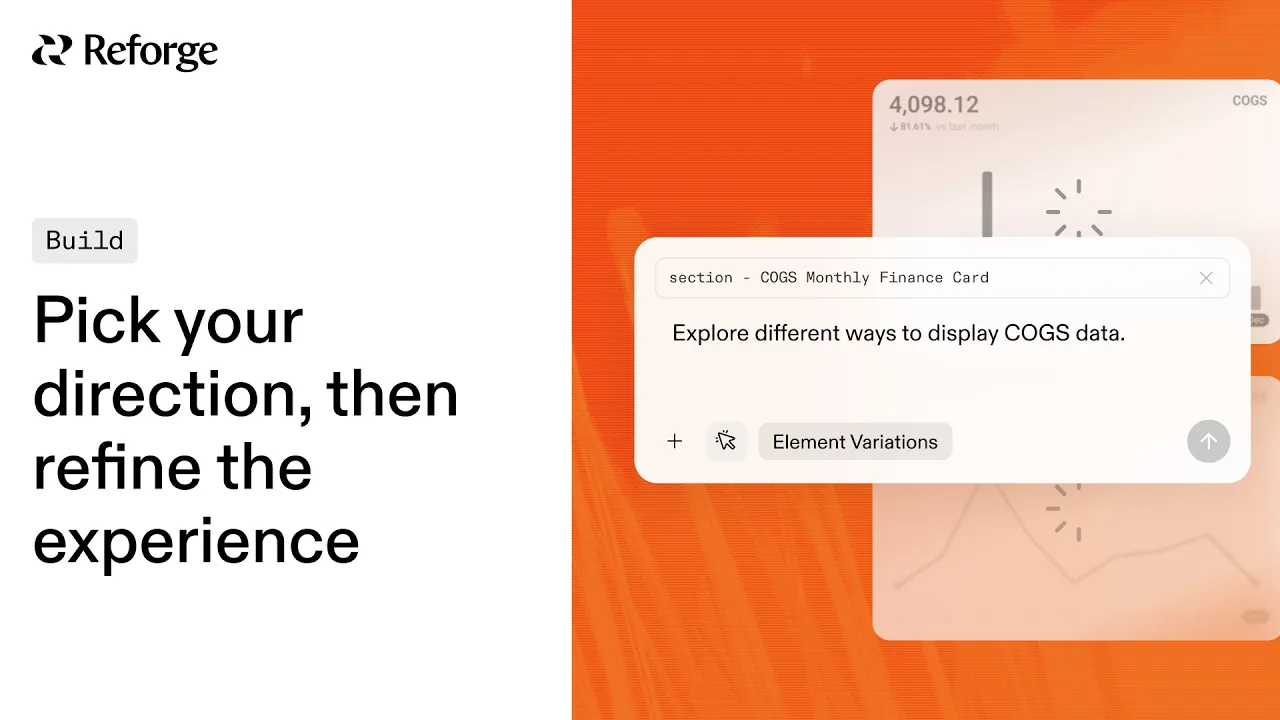
Pick your direction, then refine the experience
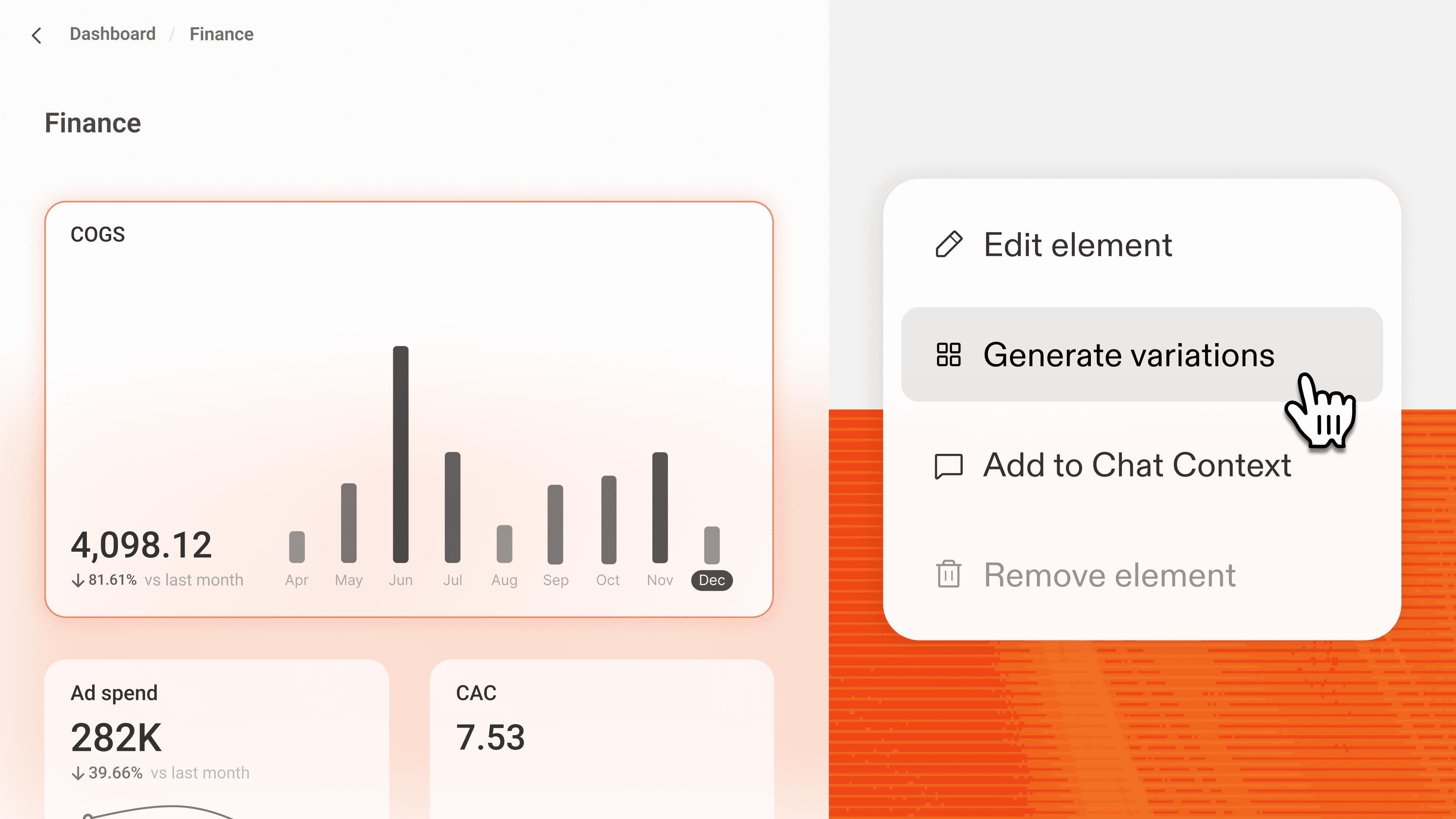
Select any element in your prototype, like a component, card, section, or screen. Click "Generate Variants." You'll get four different versions of just that element while the rest of your prototype stays intact. You see the variants side-by-side, pick the one that works, and keep building.
Here's how this works in practice. Let's say you're a PM at a project management SaaS company. You realize that dependencies between tasks are invisible until someone asks in Slack or manually checks every card.
So you kick off a prototype to explore ways to solve this. You toggle Variations on and Reforge Build generates four initial approaches.
A Gantt-style dependency map.
A smart inbox that surfaces unblocked tasks first.
Inline warnings when creating dependent tasks.
A separate dashboard showing everything that's blocked.
After collecting feedback from your users, the smart inbox wins. But as you refine the prototype, new questions emerge. For example, should blocked tasks appear grayed out at the bottom, hidden entirely, or in a collapsed section?
Each question deserves its own exploration. This is where Component Variations kicks in. You select the blocked task card and Reforge Build will generate four variants that you compare side by side.
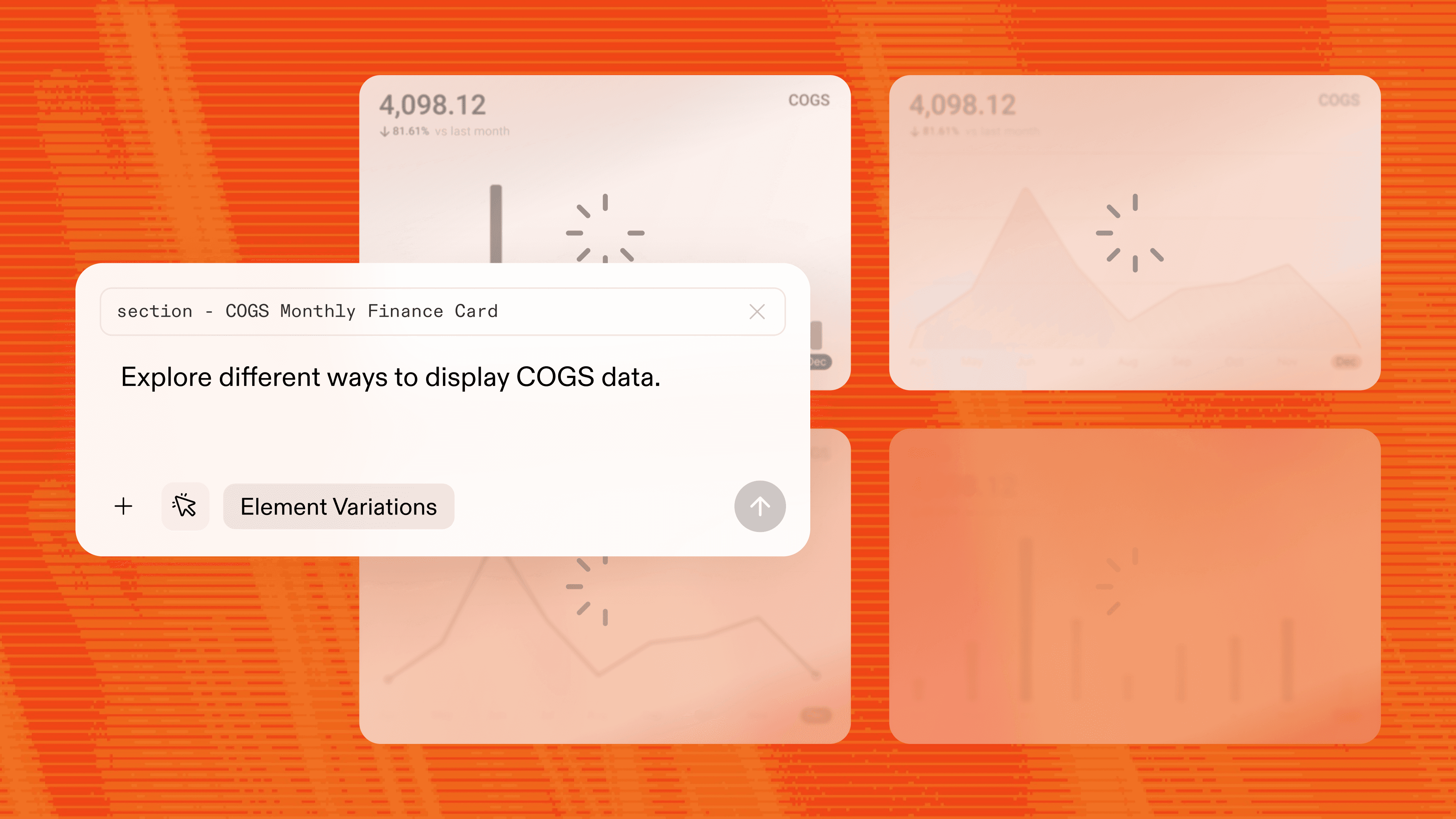
Each decision takes minutes instead of hours because you're comparing actual implementations, not guessing based on descriptions.
Exploration unlocks better solutions, better features
Most product decisions require as much context as possible, not quick answers. Component Variations allows you to visualize multiple solutions to entire workflows or tiny buttons. It encourages this possible at every level of detail, not just at the start.
Explore more paths without starting over. You can branch at any decision point, not just at the beginning. When you hit a "this could work differently" moment, you don't need to abandon context or create entirely new prototypes.
Explore better solutions in higher fidelity. You're not choosing between rough sketches or vague descriptions. You're comparing actual implementations you can click through and test.
Fine-tune your prototypes. This isn't just for major decisions. Use it when something feels almost right but not quite, you can test different button placements, card arrangements, or form layouts without manual rebuilding.
The result is a prototype that's been refined at multiple decision points. Not just the initial "which overall approach" but also the dozen smaller "how should this specific piece work" questions that determine whether users actually adopt your feature.
When to Use It
You're already using Build's project-level variants at kickoff to explore different directions. Component Variations extends that same exploration power throughout your entire process:
Mid-build refinement: "The checkout flow works, but could this payment section be simpler?"
A/B concept testing: "Should this dashboard prioritize charts or tables?"
Layout exploration: "Does this content work better in cards, lists, or tabs?"
Quick validation: "Will users prefer this button placement or that one?"
The pattern is the same. When you spot a specific decision point, generate variants for just that piece, compare them, and move forward with confidence.
Start Building Today
We've seen too many PMs lock themselves into a design direction because testing alternatives felt like too much work. The prototype was "good enough," so they shipped it. Then six months later, they're rebuilding the feature because adoption was weak.
Your first idea is rarely your best idea and Component Variations opens the door to more exploration. Open your next prototype, hit a decision point that could go multiple ways, and generate some options. See what happens when you actually compare alternatives instead of committing to the first thing that works.
You can remix the prototype from the video with this link, then try Component Variations for yourself. Or schedule a demo to learn more.


One of our core beliefs about AI prototyping is that speed enables deeper exploration, not just efficiency.
We shipped the first version of Reforge Build with Variations to put this idea front and center. When kicking off a new prototype, toggle "Variations" on and Build will create visual mockups of four different design approaches. Each one comes with an explanation of the core idea, how it works, and what tradeoffs it makes.
Component Variations takes this a step further. Once you’ve chosen a broad direction for your prototype, you can use Component Variations to explore ways to fine tune your idea.
This prevents you from committing to a direction before you've seen your options. The best solution is often the one you wouldn't have thought to build first.
Pick your direction, then refine the experience
Select any element in your prototype, like a component, card, section, or screen. Click "Generate Variants." You'll get four different versions of just that element while the rest of your prototype stays intact. You see the variants side-by-side, pick the one that works, and keep building.
Here's how this works in practice. Let's say you're a PM at a project management SaaS company. You realize that dependencies between tasks are invisible until someone asks in Slack or manually checks every card.
So you kick off a prototype to explore ways to solve this. You toggle Variations on and Reforge Build generates four initial approaches.
A Gantt-style dependency map.
A smart inbox that surfaces unblocked tasks first.
Inline warnings when creating dependent tasks.
A separate dashboard showing everything that's blocked.
After collecting feedback from your users, the smart inbox wins. But as you refine the prototype, new questions emerge. For example, should blocked tasks appear grayed out at the bottom, hidden entirely, or in a collapsed section?
Each question deserves its own exploration. This is where Component Variations kicks in. You select the blocked task card and Reforge Build will generate four variants that you compare side by side.
Each decision takes minutes instead of hours because you're comparing actual implementations, not guessing based on descriptions.
Exploration unlocks better solutions, better features
Most product decisions require as much context as possible, not quick answers. Component Variations allows you to visualize multiple solutions to entire workflows or tiny buttons. It encourages this possible at every level of detail, not just at the start.
Explore more paths without starting over. You can branch at any decision point, not just at the beginning. When you hit a "this could work differently" moment, you don't need to abandon context or create entirely new prototypes.
Explore better solutions in higher fidelity. You're not choosing between rough sketches or vague descriptions. You're comparing actual implementations you can click through and test.
Fine-tune your prototypes. This isn't just for major decisions. Use it when something feels almost right but not quite, you can test different button placements, card arrangements, or form layouts without manual rebuilding.
The result is a prototype that's been refined at multiple decision points. Not just the initial "which overall approach" but also the dozen smaller "how should this specific piece work" questions that determine whether users actually adopt your feature.
When to Use It
You're already using Build's project-level variants at kickoff to explore different directions. Component Variations extends that same exploration power throughout your entire process:
Mid-build refinement: "The checkout flow works, but could this payment section be simpler?"
A/B concept testing: "Should this dashboard prioritize charts or tables?"
Layout exploration: "Does this content work better in cards, lists, or tabs?"
Quick validation: "Will users prefer this button placement or that one?"
The pattern is the same. When you spot a specific decision point, generate variants for just that piece, compare them, and move forward with confidence.
Start Building Today
We've seen too many PMs lock themselves into a design direction because testing alternatives felt like too much work. The prototype was "good enough," so they shipped it. Then six months later, they're rebuilding the feature because adoption was weak.
Your first idea is rarely your best idea and Component Variations opens the door to more exploration. Open your next prototype, hit a decision point that could go multiple ways, and generate some options. See what happens when you actually compare alternatives instead of committing to the first thing that works.
You can remix the prototype from the video with this link, then try Component Variations for yourself. Or schedule a demo to learn more.